Aniimo PC & Console Pre-Download Now Available! Launching on September 16!
Aniimo launches on PC and console on September 16, 2026, at 10:00 (UTC+8), and pre-download officially opens on September 14, 2026, at 10:00 (UTC+8)!
Pathfinders can click the download link to get the PC client, and follow the instructions below to install the game ahead of time.
Pre-Download Details
■ Opens: September 14, 2026, 10:00 (UTC+8)
■ Platforms: Windows PC / PlayStation®5 / XBOX
■ PC download link: Download Link Before downloading, please make sure you have at least 40 GB of free storage. We recommend installing the PC client on an SSD.
Once the download finishes, click [Install Now] to install the game launcher. You’ll launch the game through the launcher from then on.
■ PlayStation®5 pre-order page: https://store.playstation.com/concept/10018491
■ XBOX pre-order page: https://www.xbox.com/games/store/aniimo/9pk8phlcqdf6
You’ll be able to pre-download the game after purchasing a PlayStation®5 / XBOX pre-order pack. Before downloading, please make sure you have at least 30–35 GB of free storage.
The PlayStation®5 client can only be installed on the PlayStation®5’s internal SSD.
Server Launch Times
[Aniimo-America] September 15, 2026, 22:00 (UTC-4)
[Aniimo-Apac] September 16, 2026, 10:00 (UTC+8)
[Aniimo-Europe] September 16, 2026, 02:00 (UTC+0)
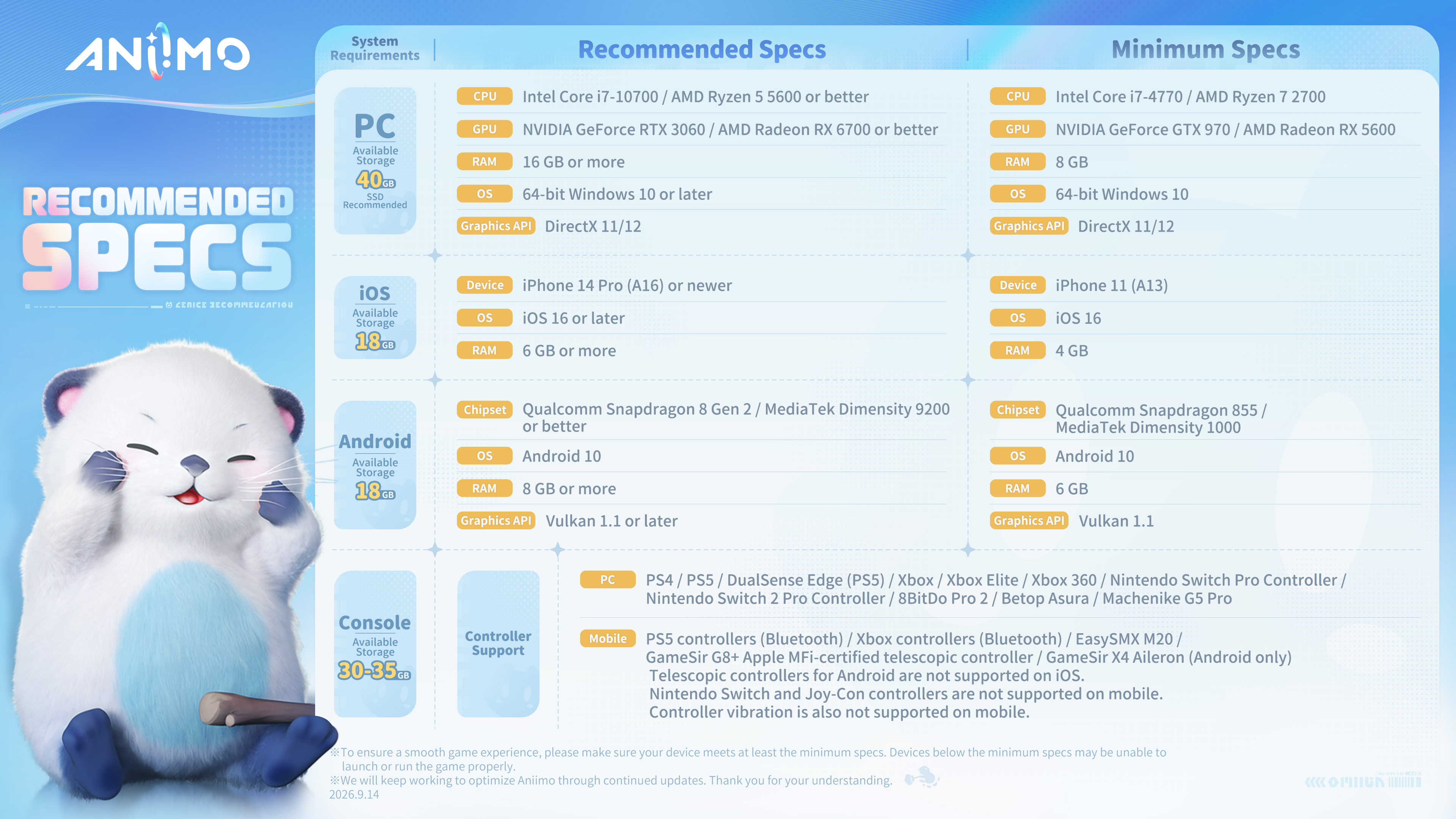
Recommended Specs
To ensure smooth installation and gameplay, please check the device requirements below:
These recommended specifications were last updated on September 14, 2026. As we keep improving Aniimo’s compatibility across devices, these specifications may change. Please refer to the official website for the latest specifications.
Cloud Gaming: XBOX Cloud Gaming
Aniimo supports XBOX Cloud Gaming. Log in with your Microsoft account at xbox.com/play to stream Aniimo across mobile, tablet, PC, Xbox consoles, and more.
Cloud gaming playtime depends on your Microsoft account status.
*Cloud streaming requires a fast, stable internet connection.
Pathfinders can learn more at: https://www.xbox.com/en-US/cloud-gaming
FAQ
I. Account Questions
1. Is account data shared across PC, console, and mobile?
Data on different servers is independent. Game progress is fully shared across all platforms within the same server.
2. I used a Steam account in a previous beta test, but now I’ve logged into Aniimo with a different email account. Can my test rewards carry over to the new email account? Yes. You can link your Steam account to your Aniimo Pass email account.
Download the Steam client, and after logging in you’ll be prompted to link an Aniimo Pass email account. You can complete the link right there. If you skip this step and go straight into the game, you can link later through the in-game [Email Link] page.
II. Common PC Download, Install & Launch Issues
(I) Client download issues
1. I still have the client from a previous test. Do I need to re-download?
Yes. Clients from previous tests can no longer be used. Please uninstall them, then download and install the latest launcher and game client.
2. When downloading, I get the following prompt: "The program is not responding."
Try restarting your PC or re-downloading the launcher.
3. Antivirus software blocks the launcher/game during download or installation, or I see "Extraction failed" / "An error occurred."
If your antivirus flags anything while downloading, installing, or opening the launcher or game, click Allow/Trust, or disable the antivirus software.
4. Download progress/speed shows 0, or the download stalls at a certain point.
Try restarting your PC, or right-click "Aniimo" → "Run as administrator" → "Yes" to reopen the launcher, then click "Update Game" again.
(II) Client installation issues
1. Which drive should I install the client on?
The game client installs to the launcher’s directory by default. For the best experience, we recommend installing on an SSD with 40 GB of space reserved for the fully extracted game.
2. The game is installed in a custom directory or on an external drive. How do I launch it?
When launching, click Settings in the top right → "Choose another folder" to locate and launch the game.
3. During launcher installation, I encounter a game file verification error, a loading freeze, or a black screen, and clicking "Retry" does not resolve the issue.
Try closing the game client, then in the launcher click Settings (top right) → "Quick Repair." If the error persists, try reinstalling the launcher.
4. During game installation, I get the following prompt: "Game file extraction failed," "An error occurred," or "Error code XXX, reason XXX."
Check the free space on your installation drive. If it’s low, free up space and reopen the launcher to update the game.
If space is sufficient, check whether antivirus software is installed and whether any game files are being blocked.
If files are blocked, unblock them, add them to the trust list, or disable the antivirus software and reopen the game.
If "An error occurred" persists after the steps above, files may be locked by an antivirus scan. Restart your system, reopen the launcher, and click Settings (top right) → "Quick Repair."
5. Why does the update progress sometimes freeze with nothing downloading?
The updater processes local files during download, and the progress bar won’t move during this time. Please be patient. If you exit mid-update, the client will also process previously downloaded files on next launch; please wait for it to finish.
(III) Client launch issues
1. When opening the launcher or game, I get the following prompt: "The version of this file is not compatible with your current version of Windows."
Check that your Windows version meets the game’s requirements. Low-spec devices may fail to install or launch, or show black screens and stuttering. ※ The minimum OS is 64-bit Windows 10. Windows 7/8 and any 32-bit systems cannot run the game. (Check via: Start → Control Panel → System and Security → System.) If your system is outdated, we recommend reinstalling or upgrading to 64-bit Windows 10 or later.
2. Nothing happens when I click the launcher.
This may be a permissions issue. Confirm you’re on an administrator account. If you are, right-click "Aniimo" → "Run as administrator" → "Yes." If the problem persists, please contact Customer Support.
3. After the launcher starts, I receive a "Network error" message or an "Error code xxx: Network error/Network timeout" message.
If the launcher reports a network error, check that your connection is working, including DNS and any proxy settings. You can also try unplugging your modem, waiting 1 minute, and plugging it back in.
4. While updating, I get the following prompt: "Insufficient disk space," or "Error code xxx, an error occurred—free up space and retry."
Check the free space on your installation drive. If it’s low, free up space and reopen the launcher to update the game.
5. After launching, the Aniimo logo never appears. It’s just a white screen.
Try downloading and installing DirectX 11.
DirectX 11 download: https://www.microsoft.com/en-us/download/details.aspx?id=17431 ※ Open the link, click Download, install the file, and restart the game.
6. The launcher update is stuck at 94%. What do I do?
The launcher is verifying resources. Wait a little longer, or restart the launcher.
7. The launcher window is larger than my screen.
Check your DPI settings and reduce the scaling. At 1080p, for example, display scaling should not exceed 125%.
8. Game account login error.
Check whether your install path contains non-alphabetic characters. If it does, your system environment may not support Unicode. Move the game to an all-English path, then update the game directory in the launcher’s settings page.
9.After updating from an old version, clicking "Start Game" shows a black screen.
Click the Settings button in the launcher’s top right, open the settings panel, click "Quick Repair," then restart the launcher.
10. Can the game directory be set to a path with Chinese characters?
We don’t recommend setting a path with Chinese characters. It may cause issues launching the game, logging in, or making in-game payments.
11. After installing, clicking "Start Game" gives the error "Failed to load il2cpp." What do I do?
This is usually a false positive from antivirus software quarantining or blocking game files. Check your antivirus quarantine/protection logs, restore the affected files, add them to the trust list, and restart the game. If the problem persists, please contact Customer Support.
12. On 13th- and 14th- gen Intel processors, you may encounter crashes, unexpected exits, freezes, graphical glitches, or out-of-VRAM errors during play.
The root cause: 13t- and 14th- gen Intel processors have a serious defect that causes degradation over time.
(※ For details, see Intel’s official statement: https://community.intel.com/t5/Mobile-and-Desktop-Processors/July-2024-Update-on-Instability-Reports-on-Intel-Core-13th-and/m-p/1617113)
See the fix here: https://aniimo.com/newslist/detail/100100
III. Console Questions
1. When do PlayStation®5 and XBOX pre-orders open? After pre-ordering, when can I download and start playing?
Pre-orders open August 13, 2026 at 5:00 (UTC+8). The game launches September 16, 2026 at 10:00 (UTC+8).
2. What pre-order packs are available on PlayStation®5 and XBOX? Are they platform-exclusive?
Pre-orders come in Advanced and Collector’s editions.
$9.9 Advanced Edition Pack: exclusive in-game accessory plus the in-game Premium Pass
$19.99 Collector’s Edition Pack: exclusive in-game accessory plus the in-game Collector’s Pass
[In-game Accessory - Fluffy Friend x1] The Fluffy Friend accessory is exclusive to PlayStation pre-orders.
[In-game Accessory - Doggo Dude x1] The Doggo Dude accessory is exclusive to XBOX pre-orders.
PlayStation®5 pre-order page: https://store.playstation.com/concept/10018491/
XBOX Advanced pre-order page: https://www.xbox.com/games/store/44ki44ol44oiios6ioe0hoizvowfpemzkowumuodkeodgocrydjgrpjg6zjgqjgrfjg6fjg7pniyg/9P7SMC59003M/0017
XBOX Collector’s pre-order page: https://www.xbox.com/games/store/44ki44ol44oiios6ioe0hoizvowfpemzkowumuodkeodgocrydjgqljg4njg5djg7pjgrnniyg/9PH327N126WG/001
*Prices vary by region and cannot be converted exactly.
3. I’ve purchased a pre-order pack. When and how do I receive the contents?
After servers open, pack items will be sent to the in-game mailbox of the first character created on the console account that purchased the pack.
If you purchased a pre-order pack, download and log into the game on the corresponding console platform, then claim your items from the in-game mail. After claiming, open your in-game inventory to use and activate them.
※ The Companion Handbook is an in-game item. Using it from your inventory activates the corresponding tier of the current Companion Handbook, effective until the current version ends.
※ The Companion Handbook’s exclusive Prismana Aniimo egg changes with each version. Each Handbook features a different Prismana Aniimo. Please refer to the version in which the item is redeemed.
4. I participated in a previous Aniimo test and registered an account. How do I link it to my PSN/XBOX account?
When playing for the first time on console with a PSN account or Microsoft account that has never logged into Aniimo, follow the popup prompts to link your registered Aniimo Pass email account.
※ The linking popup only appears the first time a PSN account or Microsoft account logs into the game, and this popup is the only chance to link an existing Aniimo Pass. If you skip it, the PSN account or Microsoft account will log in and register a new Aniimo Pass, and can no longer be linked to a game account with an existing Aniimo Pass.
5. Is PlayStation®5/XBOX data shared with other platforms and regions?
Data on different servers is independent. Once you link an eligible PSN account or Microsoft account with an Aniimo Pass email account, progress within a single server is fully shared across all platforms.
For PlayStation®5 players: Your server on PlayStation®5 is automatically assigned based on your PSN account’s registered region, and Aniimo does not support cross-server progress sharing. Before linking, please confirm that the server of your existing character on other platforms matches your PSN account’s server.
To check your PSN account’s server, see the table below or contact PlayStation Support (https://support.playstation.com/)
| Aniimo Server | Aniimo-America | Aniimo-Europe | Aniimo-Apac |
|---|---|---|---|
| CorrespondingCountry/Regions | Country/Regions | Country/Regions | Country/Regions |
| Argentina, Bolivia, Brazil, Canada, Chile, Colombia, Costa Rica, Ecuador, El Salvador, Guatemala, Honduras, Mexico, Nicaragua, Panama, Paraguay, Peru, United States, Uruguay | Austria, Bahrain, Belgium, Bulgaria, Croatia, Cyprus, Czech Republic, Denmark, Finland, France, Germany, Greece, Hungary, Iceland, Ireland, Israel, Italy, Kuwait, Lebanon, Luxembourg, Malta, Netherlands, Norway, Poland, Portugal, Qatar, Romania, Russia, Saudi Arabia, Slovakia, Slovenia, South Africa, Spain, Sweden, Switzerland, Turkey, Ukraine, United Arab Emirates, United Kingdom | Australia, India, Indonesia, Japan, Korea, Malaysia, New Zealand, Oman, Singapore, Hong Kong SAR, Taiwan Region, Thailand |
6. Do I need PlayStation‑Plus / Xbox Game Pass to purchase and claim pre-order packs?
No.
7. I bought a PlayStation®5 / XBOX pre-order pack. Can I log in and claim it on another platform? Can claimed items be used elsewhere?
Pre-order pack contents must be claimed by logging in on the console platform where they were purchased. After account linking, claimed accessories and items can also be used on other platforms within the same server.
8. Does Aniimo support PlayStation®5 / XBOX controllers? Is there an achievement/trophy system?
Aniimo supports PlayStation®5 and XBOX controllers and includes an achievement/trophy system. After account linking, achievement/trophy progress is shared across those platforms within the same server.
9. Can I play Aniimo and claim pre-order packs on PlayStation®4?
Aniimo and its pre-order packs are currently only available on PlayStation®5 and PlayStation®5 Pro. PlayStation®4 play and purchases are not supported at this time.
10. I bought pre-order packs on both PlayStation®5 and XBOX. Can I claim both rewards on the same account after launch?
Yes. Link the PSN account or Microsoft accounts used for both pre-orders to the same Aniimo Pass, and you can claim both packs from your in-game mailbox.
※ See Question 4 for account linking details.
11. My pre-order payment failed. What should I do?
Try troubleshooting according to your platform’s guidelines, or contact PlayStation®5/XBOX platform support for help.
PlayStation®5 credit/debit card issues: https://www.playstation.com/en-us/support/store/ps-store-credit-debit-card-problems/#issues
XBOX payment issues: https://support.xbox.com/en-us/help/subscriptions-billing/buy-games-apps/purchase-error-solution
12. If I bought multiple pre-order packs, how do I use them in-game?
Multiple packs grant the corresponding number of accessories and Battle Pass redemption cards.
Aniimo can wear up to 2 accessories; player characters can wear 1.
Only one paid tier of each Battle Pass period (Advanced or Collector’s Edition) can be activated.
Once any paid tier is active for the current period, remaining Battle Pass redemption items cannot be used that period, but carry over to future versions with no expiration.
Upgrading from an active Advanced to Collector’s Edition requires a paid upgrade.
13. If I bought both the Advanced and Collector’s Edition pre-order packs, can I use both Battle Passes at the same time?
Pathfinders can hold multiple Battle Pass redemption cards, but only 1 can be redeemed per period (per version).
If any paid tier is already active this period—whether purchased or redeemed—remaining Battle Pass redemption items cannot be used until a future version. Redemption items never expire.
If you activate the Advanced Edition with a redemption item and want to upgrade to the Collector’s Edition within the same period, you must pay for the upgrade. You cannot activate a separate Collector’s Edition Battle Pass on top of an active Advanced Edition one. If you hold Battle Pass redemption items, we recommend using them first to avoid duplicate purchases.
14. PlayStation®5/XBOX top-up rules and methods
After the game launches, you can purchase in-game items through the Xbox Store, PlayStation™Store, or the in-game purchase portal.
You can also enjoy additional discounts by linking your email in-game and then making purchases through the official Aniimo Shop: https://aniimo.com/store
※ Bonus: Every purchase of Lumin Crystals comes with a 10% bonus. In addition, your first purchase of each Lumin Crystal tier grants extra Glimmer.
15.I bought both the Collector’s Edition and Advanced Edition Pre-Order Packs, but only received one after launch. What should I do?
If this happens to you, just restart the game and log back in, and the other pack will be there for you to claim.
Official Customer Support
If you run into any issues during pre-download, please contact Aniimo’s official support: support_en@aniimo.com